This functionality is only available to partners and multi-entity customers.
- Using the main navigation, navigate to Customers (partners) or Entities (multi-entity customers)
- Find the company you want to add the contact to
- Click Actions > View
- A screen will appear
- Then, click the Contacts tab
- Under the contact list, click on the button with the "+" sign on the right of the screen
- A screen with the user form will appear
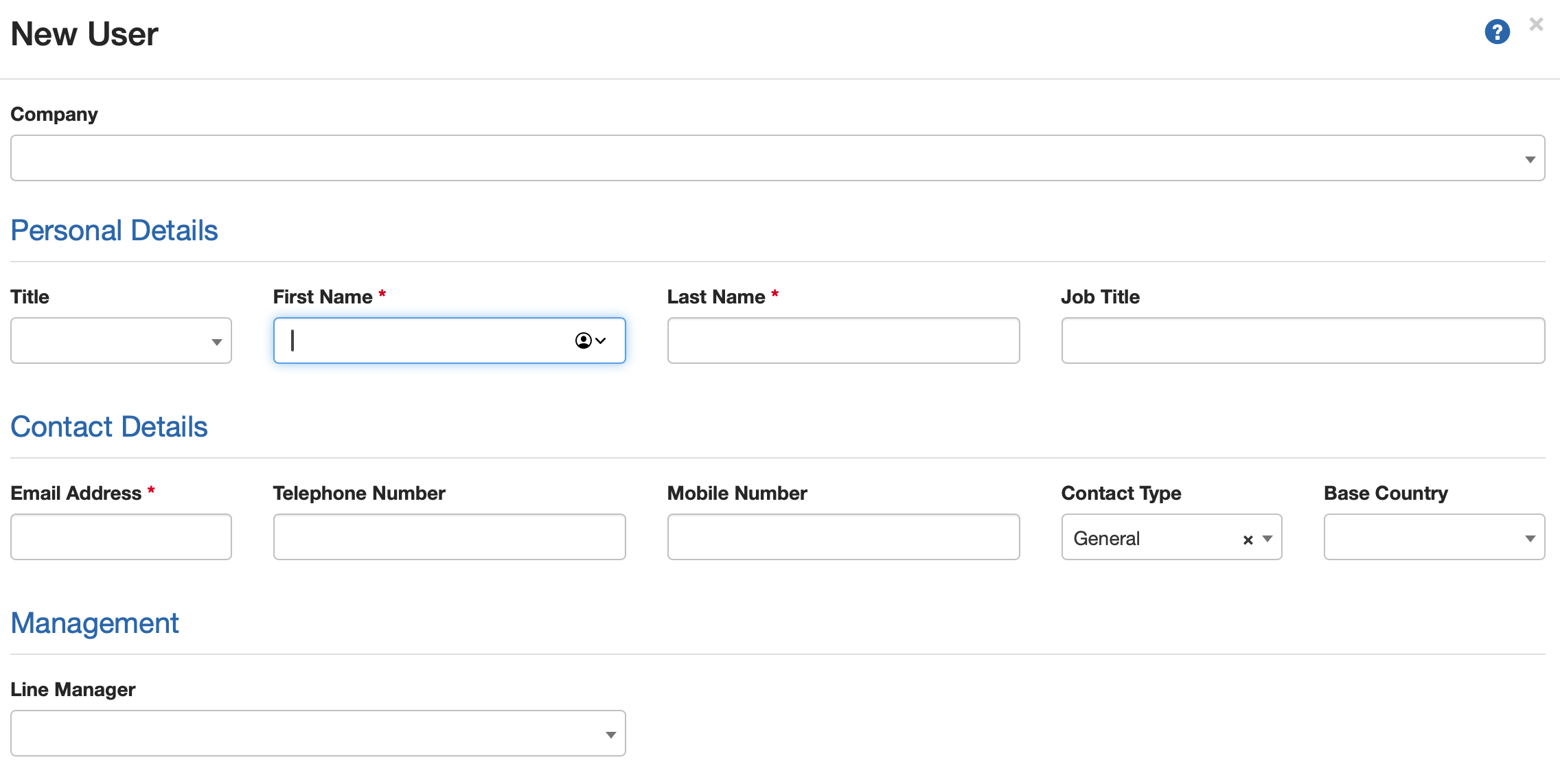
- Complete the form
- [OPTIONAL] Only complete the Settings section if your customer is going to be using the Holiday Management module
- You must select at least one user role to assign to the user under Access Permissions
- [OPTIONAL] You can also apply estate access to a user if your customer only wants the user to access certain properties. See How to create an Estate Access Rule for more information.
- When you have finished, click Save
- If your customer has a subscription, a Welcome email will also be sent to the email address you specified so that they can set their password and access Risk Warden
- The Contact will now appear under the selected company's contacts
Was this article helpful?
That’s Great!
Thank you for your feedback
Sorry! We couldn't be helpful
Thank you for your feedback
Feedback sent
We appreciate your effort and will try to fix the article